Copy & Share the Invite Link
Here is how to copy your meeting invitation and send it to participants — both before a meeting starts and during a live session.
From the Home Screen (Before the Meeting)
- 1
On the Zoom home screen, click the small arrow (▾) to the right of the "New meeting" text on the orange button.
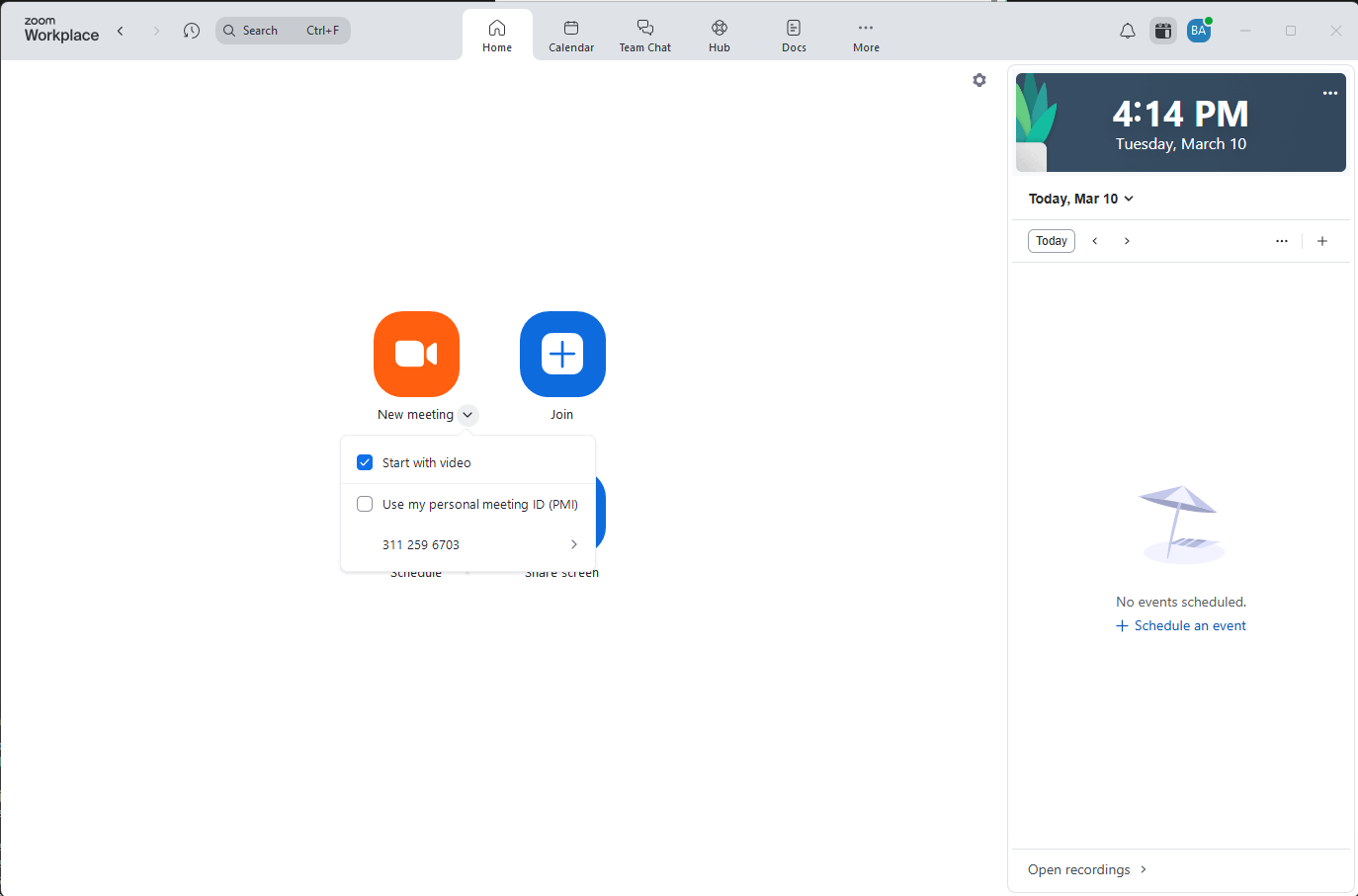
Click the small arrow next to "New meeting" to open the dropdown. Your Personal Meeting ID appears at the bottom. - 2
Your Personal Meeting ID number is listed at the bottom of the dropdown with an arrow (›) on the right. Hover over it to expand the options.
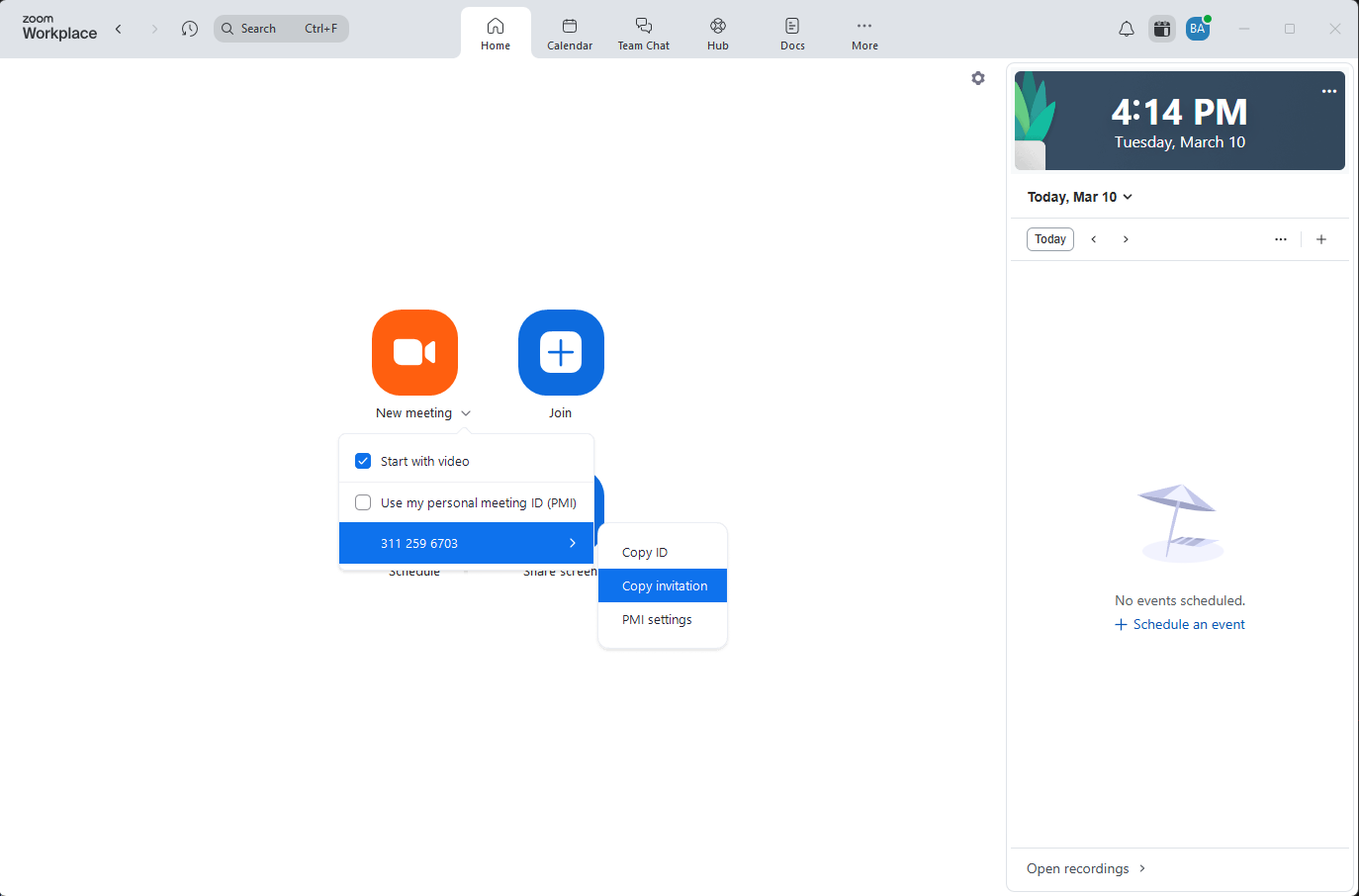
Hover over the meeting ID row to reveal the copy options. - 3
Click "Copy invitation" to copy the full invitation text, or "Copy ID" to copy just the Meeting ID number.
"Copy invitation" includes the meeting topic, join link, Meeting ID, and dial-in details — everything a participant needs to join.
- 4
Open your email or messaging app, paste the text, and send it to your participants.
Press Ctrl + V (Windows) or Command + V (Mac) to paste.
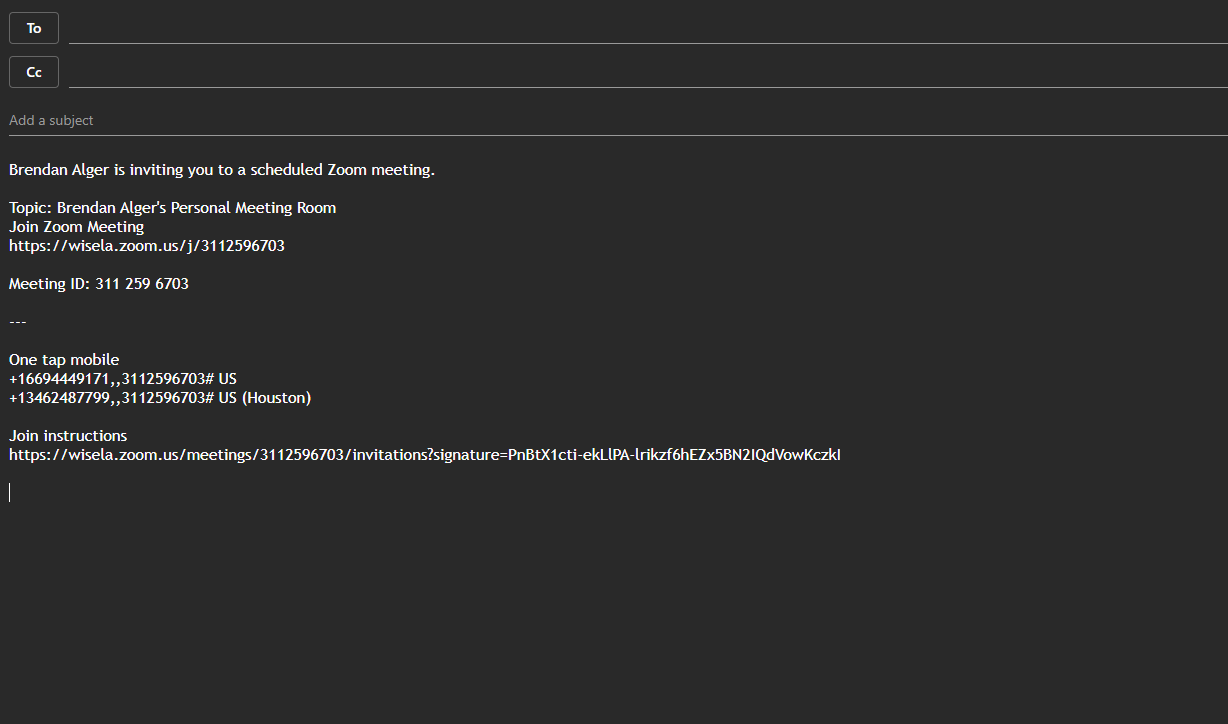
The pasted invitation includes everything participants need to join the meeting.
During a Live Meeting
- 1
In the bottom toolbar of the meeting window, click the arrow (^) next to "Participants."
- 2
A small menu will appear with two options:
"Invite…" — opens a window where you can invite people directly.
"Copy invite link" — copies just the clickable join URL to your clipboard.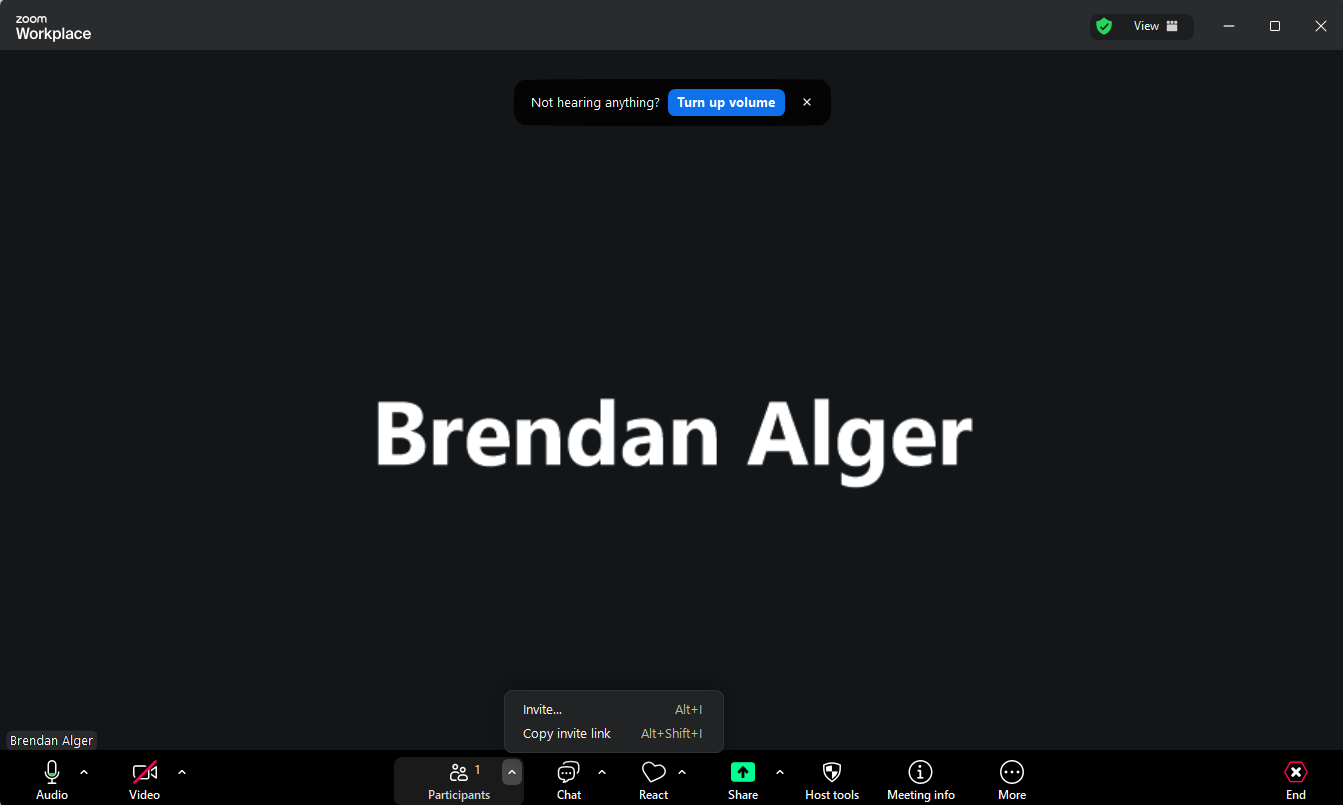
Click the ^ arrow next to Participants to see the invite options. - 3
Click "Copy invite link" to copy the URL, then paste it into an email or message and send it to your participants.