Fix Audio & Camera Issues
If you or your participants cannot hear each other, or if your camera is not working, select the problem you are experiencing below and follow the steps.
What is the problem?
Microphone Not Working — No One Can Hear You
A Check if you are muted

- 1
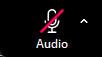
Look at the bottom-left corner of the meeting window. You will see a microphone icon labeled "Audio."
- 2
If there is a red diagonal line through the microphone, you are muted.
Click the microphone icon once to unmute yourself.
- 3
If the microphone has no red line, you are already unmuted. Move on to the next check.
B Make sure the correct microphone is selected
- 1
In the meeting window, click the small upward-pointing arrow (^) to the right of the microphone icon in the bottom-left toolbar.
- 2
A menu will appear. Under "Select a microphone," you will see a list of audio devices connected to your computer.
A checkmark (✓) shows which device is currently active.

The audio menu. Select your microphone and speaker under their respective sections. "Audio settings…" at the bottom opens the full Settings window. - 3
Click the microphone you want to use to select it.
If you are using a headset or USB microphone, select it by name. If unsure, try each device and ask someone in the meeting if they can hear you.
C Test your microphone in Settings (before a meeting)
- 1
On the Zoom home screen, click the gear icon (⚙) in the top-right corner to open Settings.

Click the gear icon in the top-right corner of the Zoom home screen to open Settings. - 2
On the left side of the Settings window, click "Audio."
- 3
Under the "Microphone" section, click the dropdown to select the correct audio device.

Click the microphone dropdown to see all available devices and select the one you want to use. - 4
Click the "Test microphone" button and speak for a few seconds.
Zoom will play back what it recorded. If you hear yourself, the microphone is working correctly.

Click "Test microphone" to record and play back your audio. You can also test your speaker with "Test speaker."
Still having trouble?
Contact the and let them know which step you reached before the problem persisted. The more information you provide, the easier and quicker it is to resolve the issue.