Find the Meeting ID or Invite Link
Every Zoom meeting has a unique Meeting ID (a 9 or 11-digit number) and a clickable invite link. Participants use one of these to join. There are two ways to find this information before a meeting starts.
From the Home Screen Sidebar
- 1
Open Zoom. Your upcoming scheduled meetings are listed in the right side panel of the home screen.
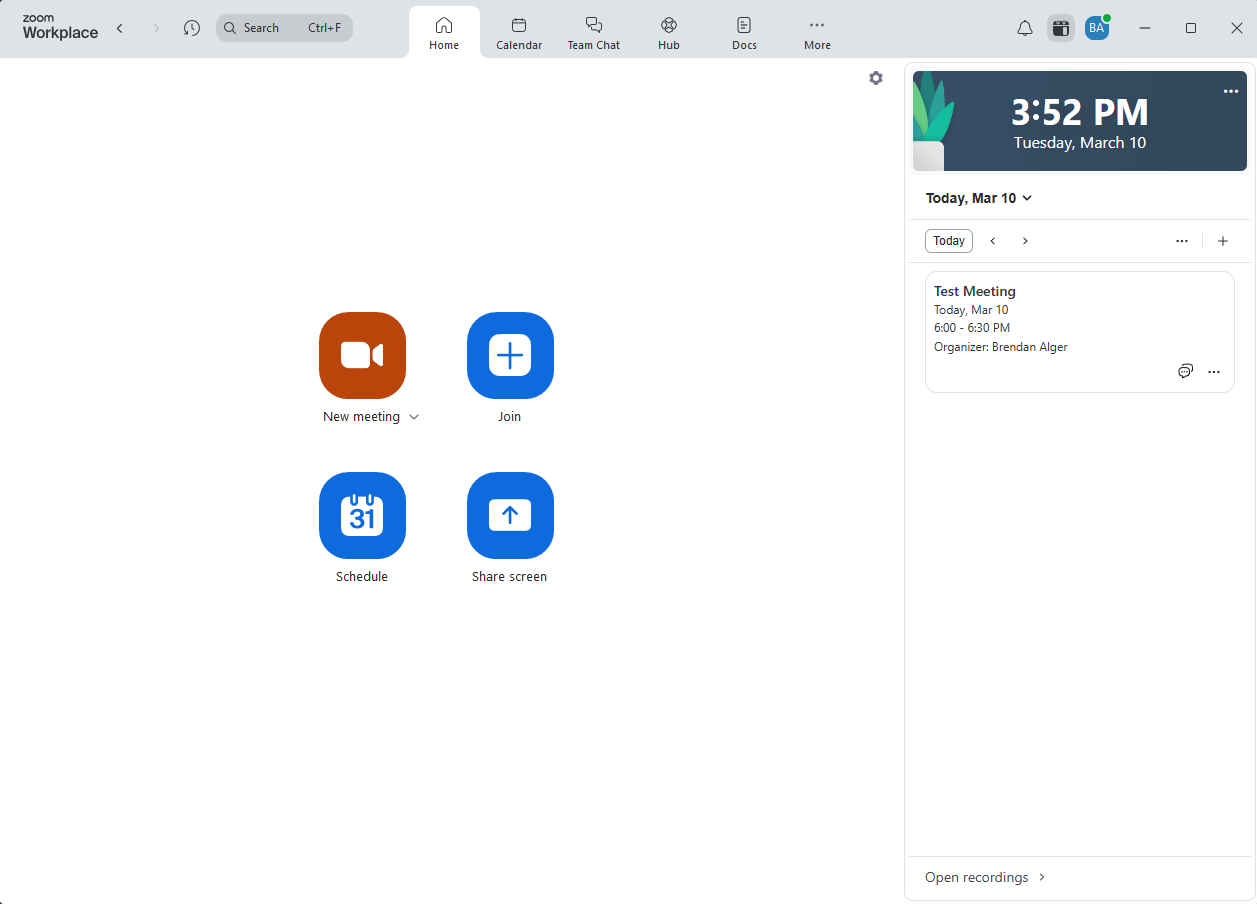
Upcoming meetings appear automatically in the right panel of the Zoom home screen. - 2
Click on the meeting you want. A meeting details panel will open.
You will see the meeting title, date and time, a Start button, and a "View join info" link.
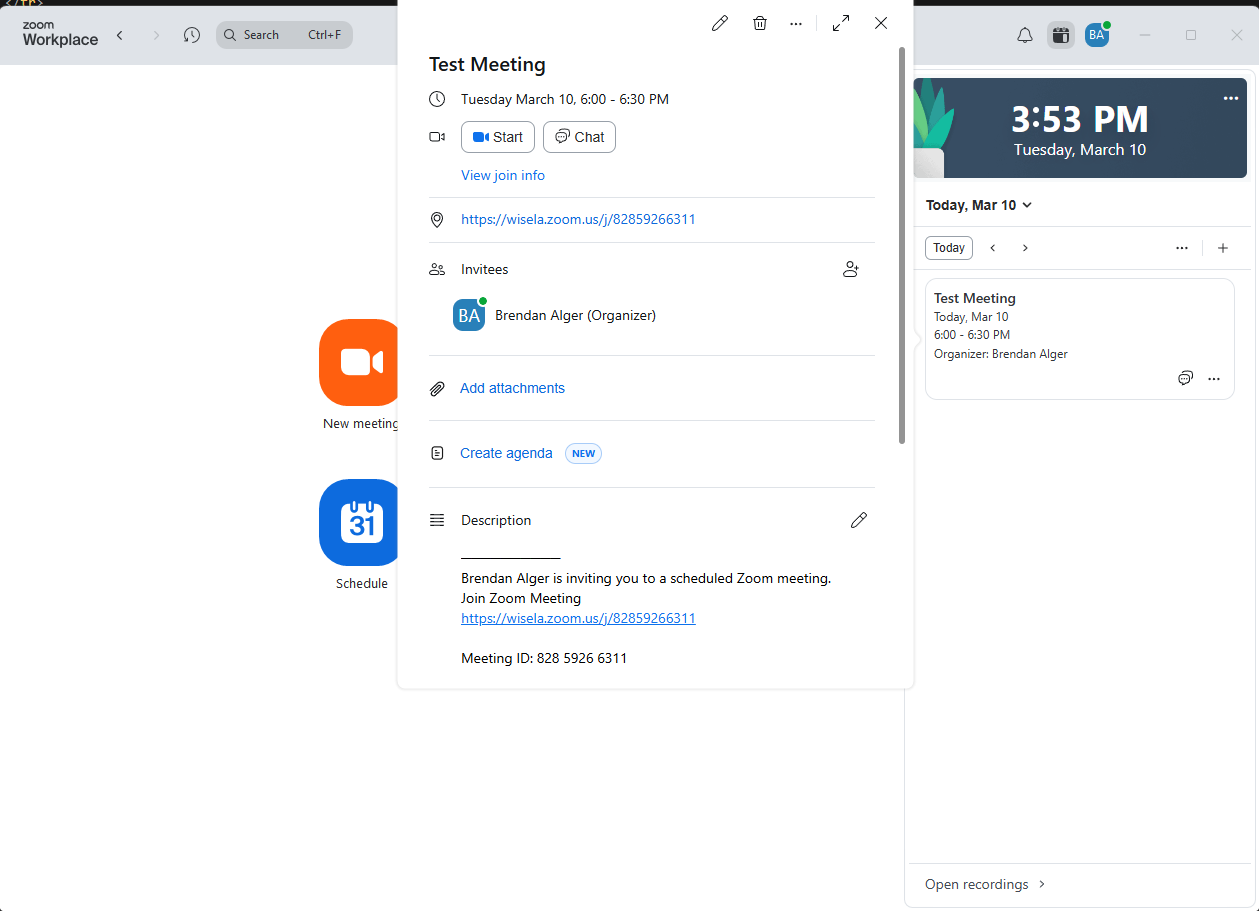
The meeting details panel. Click "View join info" to reveal the invite link and Meeting ID. - 3
Click "View join info."
- 4
The Invite Link and Meeting ID will appear with copy buttons next to each one.
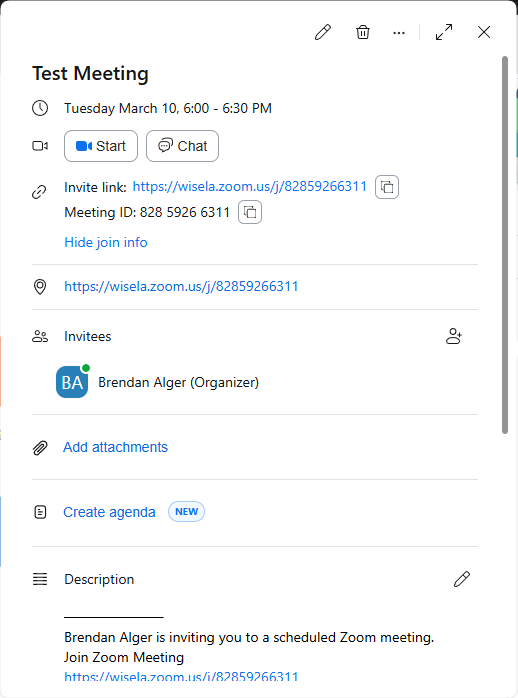
The invite link and Meeting ID are now visible. Click the copy icon next to either one to copy it.
From the Calendar Tab
- 1
Click the "Calendar" tab at the top of the Zoom window.
It is in the top navigation bar, to the right of the Home tab.
- 2
Find your meeting on the calendar and click on it.
A meeting details panel will open on the left side, showing the same information as the home screen sidebar.
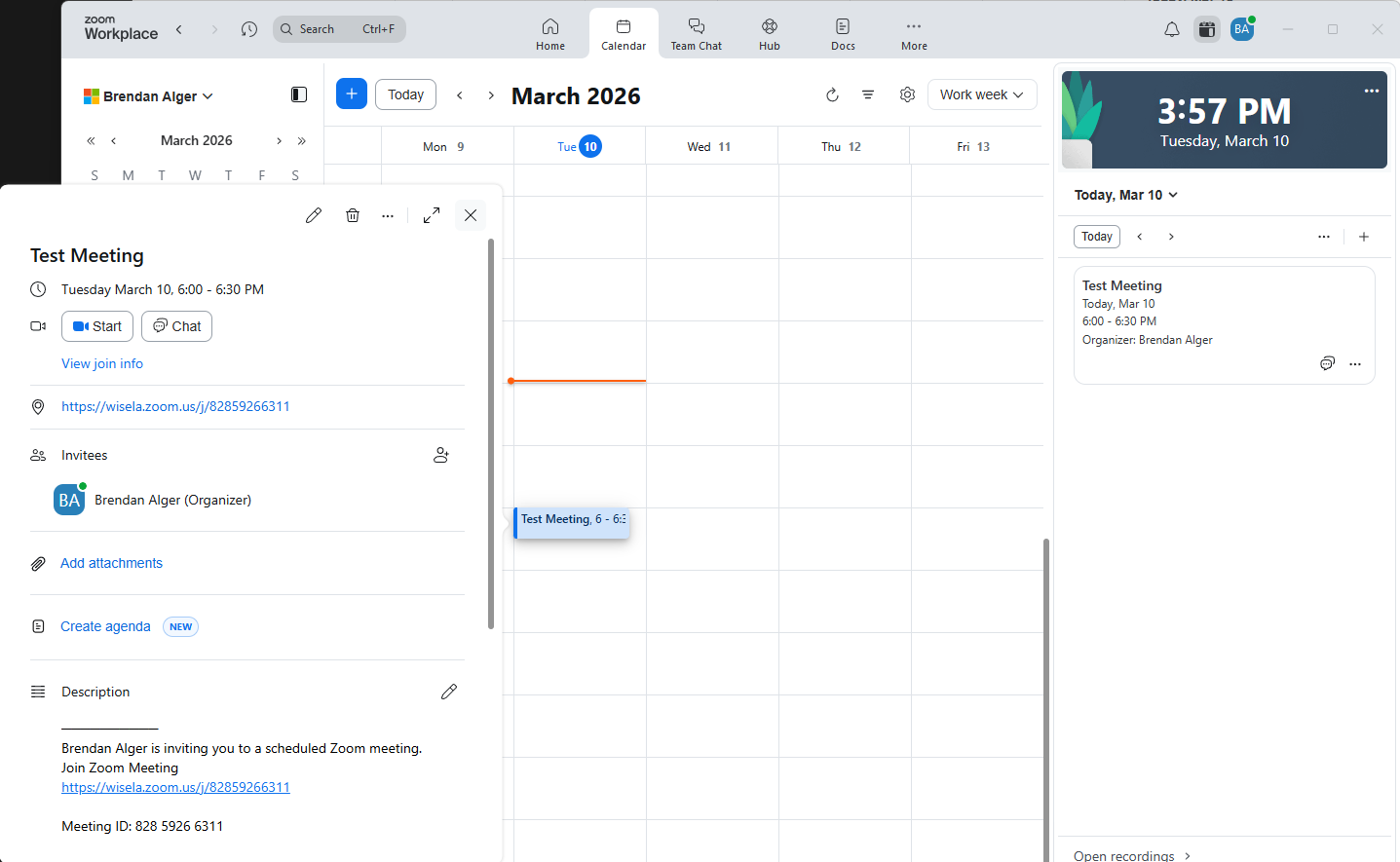
The Calendar tab. Click any meeting to open its details panel. The "View join info" link appears near the top. - 3
Click "View join info" in the meeting details panel.
- 4
The Invite Link and Meeting ID will appear with copy buttons next to each one.
Click the copy icon next to the invite link or Meeting ID to copy it to your clipboard.