Create a New Meeting
There are two ways to create a meeting: start one right now (an instant meeting), or schedule one for a future date and time. Both are covered below.
Start an Instant Meeting (Right Now)
- 1
Make sure you are logged in to Zoom. (See Topic 01 — Log In Using SSO if needed.)
- 2
On the Zoom home screen, look for the large colored buttons in the center of the window.
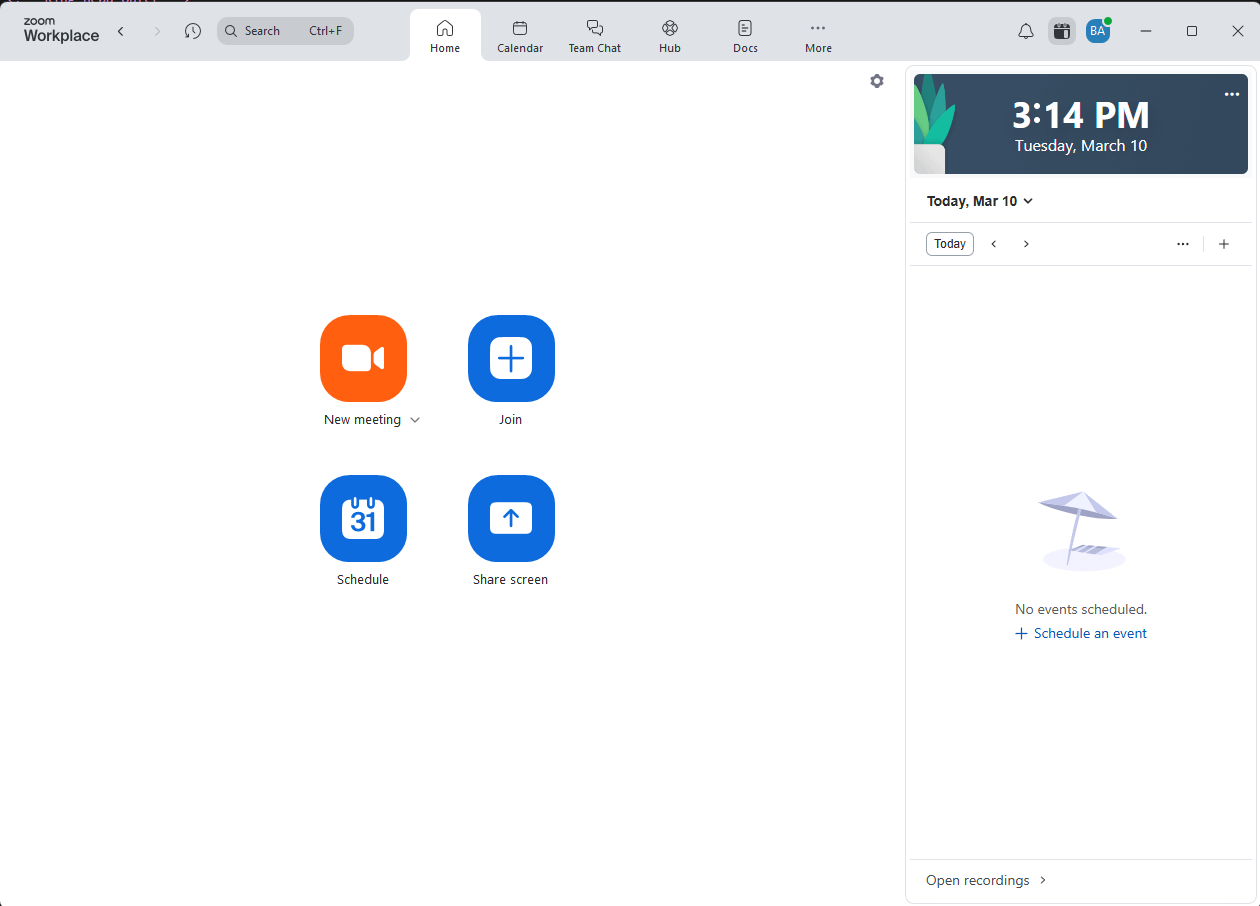
The Zoom home screen. The orange "New Meeting" button is in the top-left. - 3
Click the orange "New Meeting" button.
It has a small video camera icon on it.
- 4
A camera and audio preview will appear before you enter the meeting. This lets you check that your camera and microphone are working correctly.
You can toggle your camera or audio on/off here before anyone else sees or hears you.
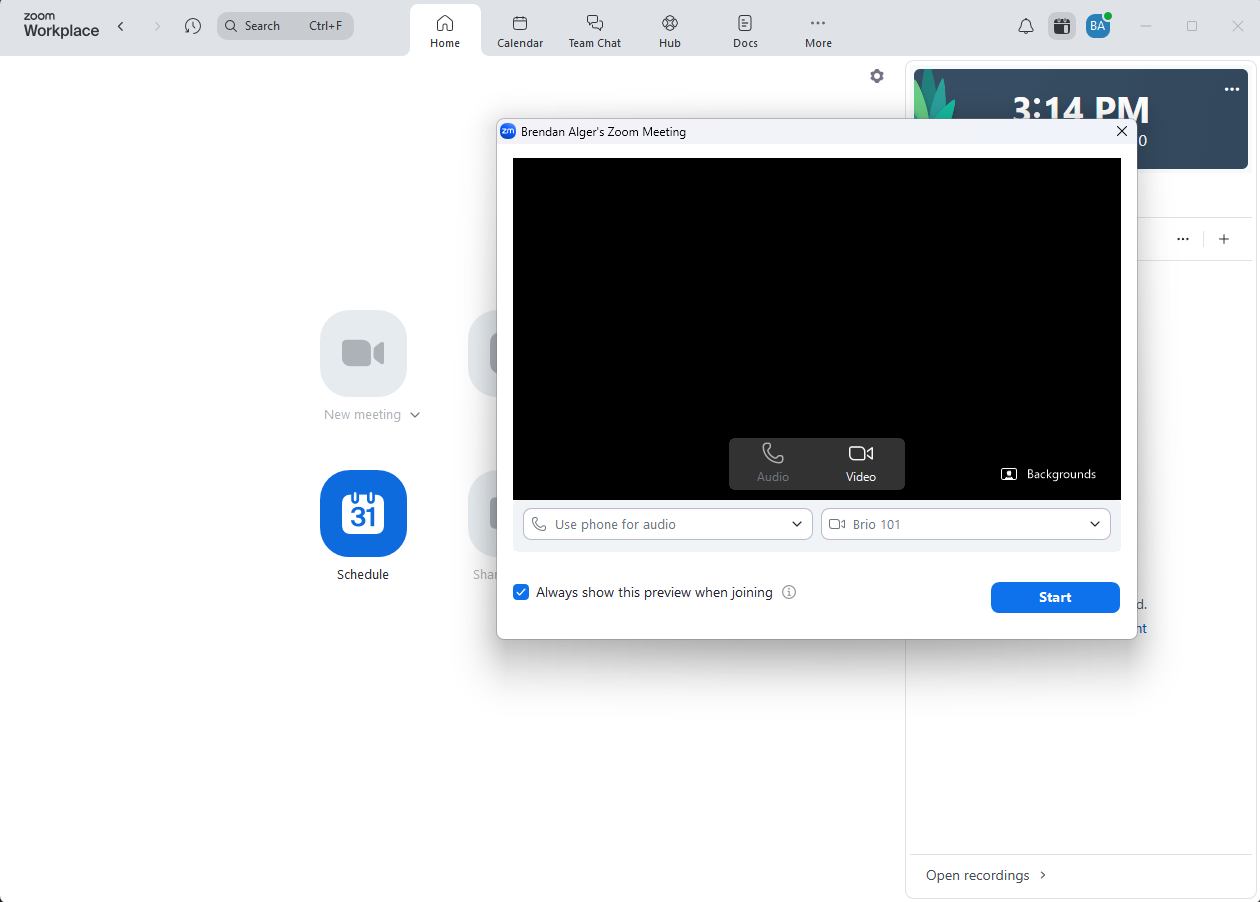
Check your camera and audio here. Click "Start" when you are ready to enter the meeting. - 5
Click "Start" to enter the meeting. Your meeting will begin and you are now the host.
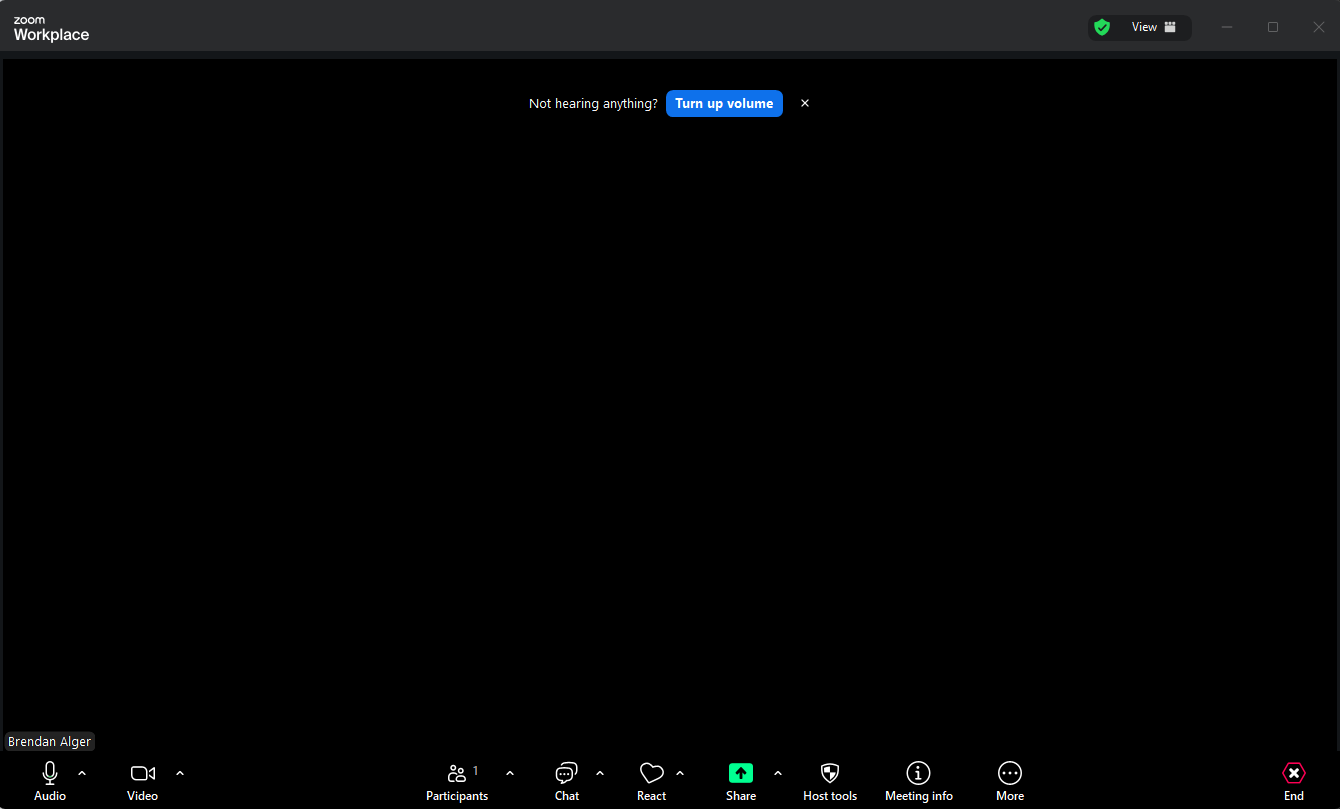
The active meeting screen. Your controls — audio, video, participants, and more — are at the bottom.
Schedule a Meeting for a Future Date & Time
- 1
On the Zoom home screen, click the blue "Schedule" button.
It has a calendar icon on it. It is in the same group as the orange "New Meeting" button.
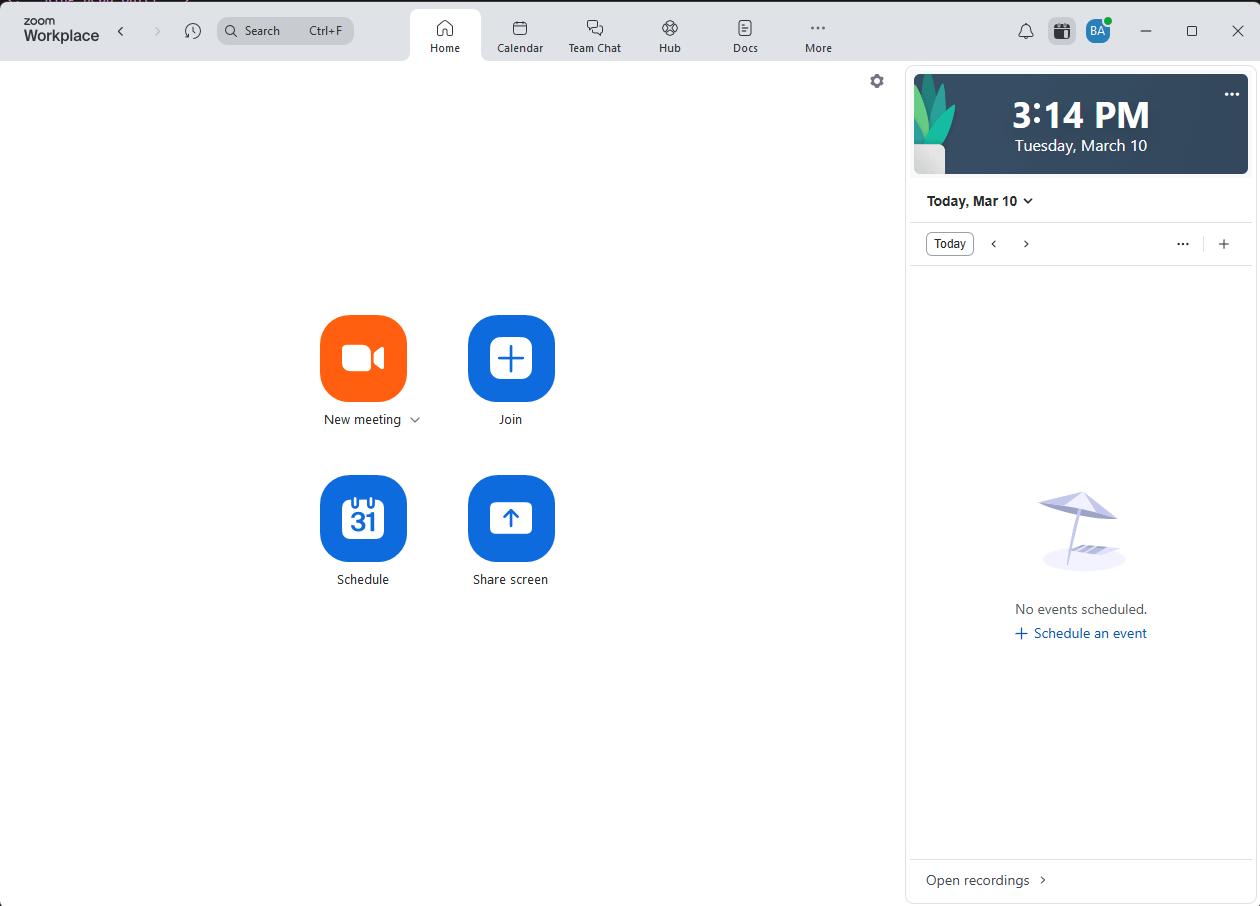
Click the blue "Schedule" button on the Zoom home screen. - 2
A brief scheduling form will appear. Fill in the following fields:
| Field | What to do |
|---|---|
| Meeting title | Type a short name at the top, e.g. "Weekly Team Check-In." This is what participants will see. |
| Date & Time | Set the start date, start time, and end time. The timezone shown is your current timezone. |
| Add invitees | Type the email addresses of the people you want to invite. Do this before saving — there is no separate invitation step. |
| Meeting type | Leave this set to "Zoom Meeting" unless instructed otherwise. |
| Rooms / Location | Optional. Add a physical room or location if the meeting has an in-person component. |
| Agenda / Description | Optional. Add a meeting agenda, description, or attachments for participants. |
- 3
When you are done, click the blue "Save" button.
The meeting is created immediately. Any invitees you added will be notified automatically — there is no separate page or step to send invitations.
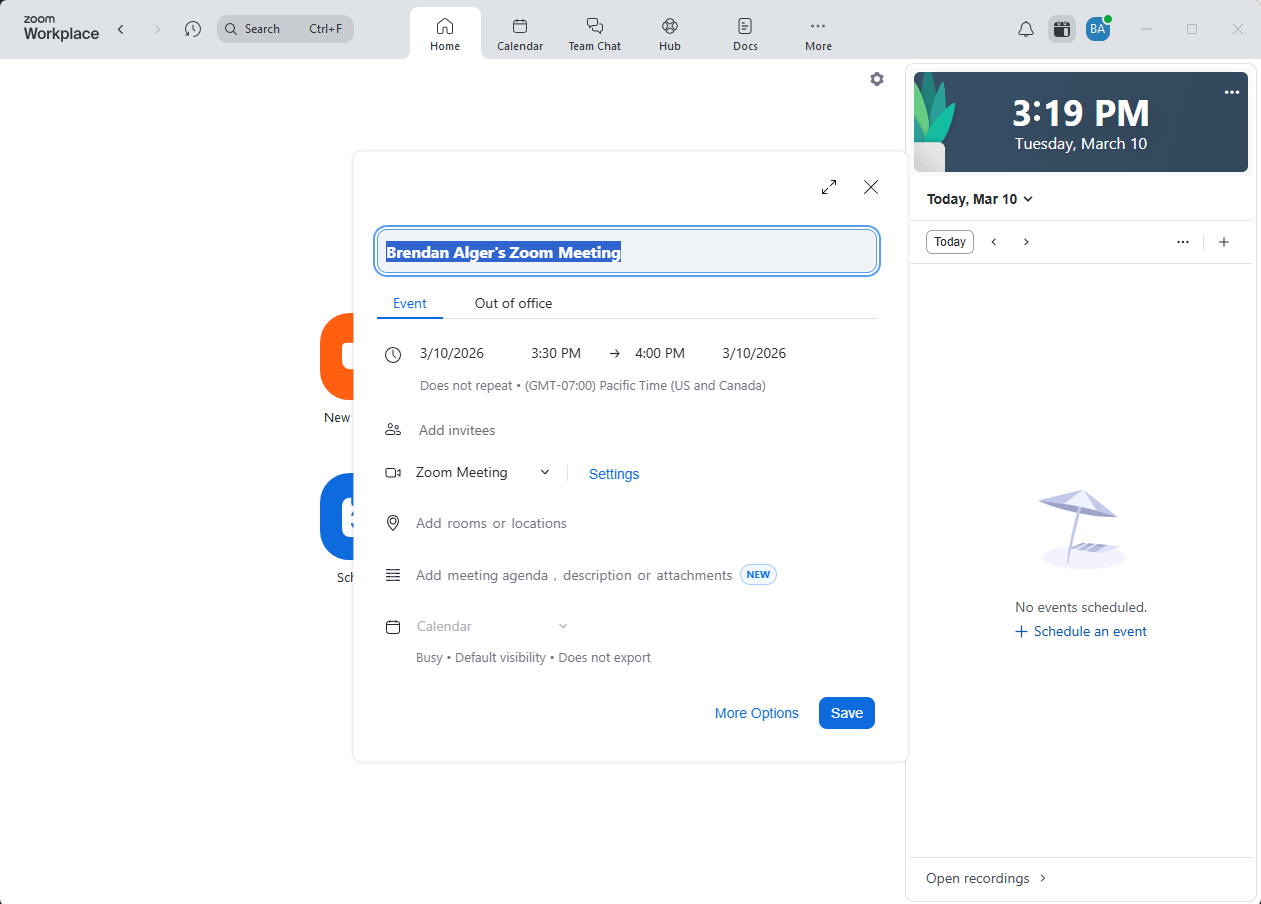
The quick scheduling form. Add invitees here before saving — there is no separate invitation step.