Log In Using SSO
SSO stands for Single Sign-On. It lets you log in to Zoom using your existing work email credentials — the same username and password you use to log in to your computer or email. You do not need a separate Zoom password.
- 1
Open the Zoom application on your computer.
The icon looks like a white video camera inside a blue circle. If Zoom is not installed, visit zoom.us/download and click Download under "Zoom Desktop Client."
- 2
On the Zoom welcome screen, click the button labeled "Sign In."
It is located in the center of the screen.
- 3
On the sign-in page, look toward the bottom of the form for the text that says "Sign in with SSO."
Click on those words — they appear as a clickable link (underlined text).
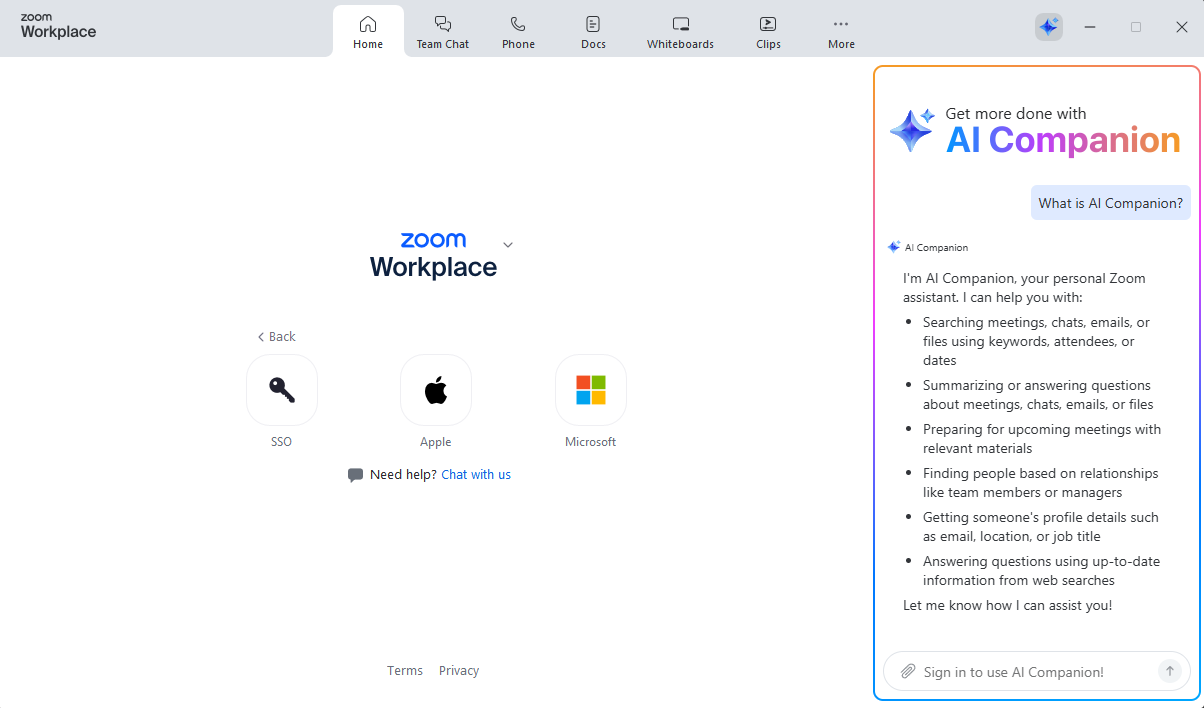
Click "SSO" to sign in using your company credentials. - 4
A box will appear asking for your company domain.
Type wisela into the box.
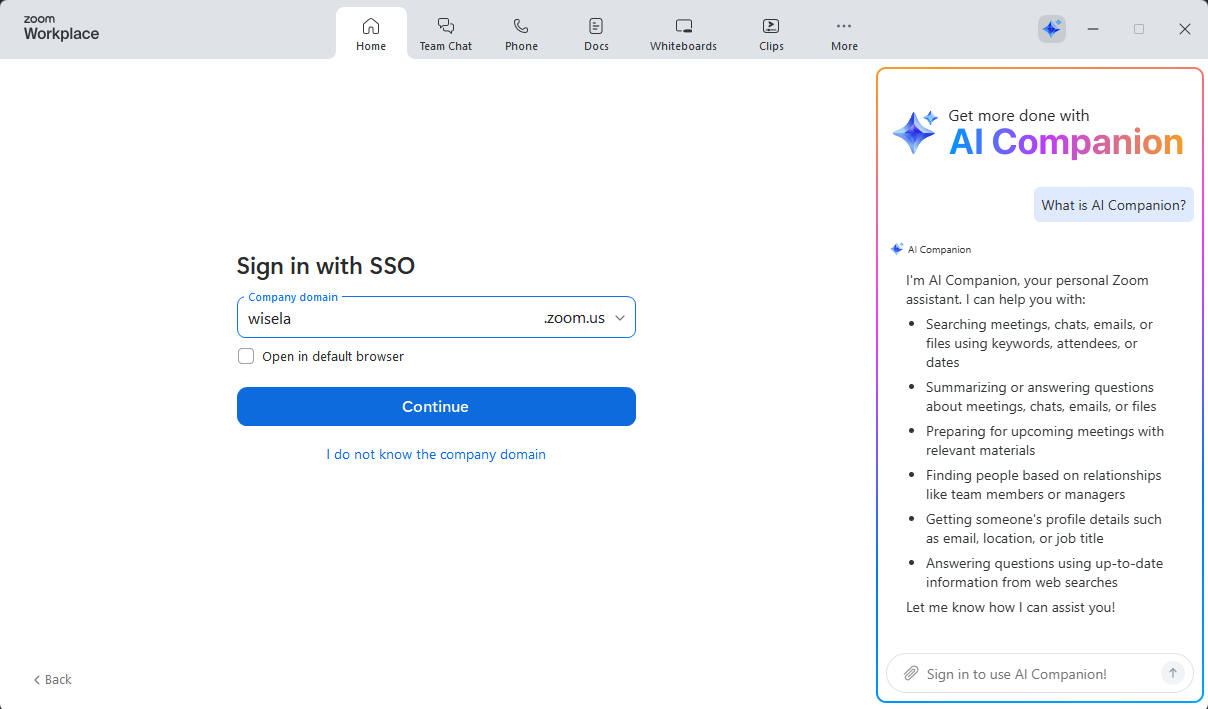
Type "wisela" as the company domain, then click Continue. - 5
Click "Continue."
- 6
Zoom will open a page in your web browser. This will be a Microsoft login page.
Enter your work username and password — for example: yourname@wisela.org, yourname@wise-school.org, or yourname@aaronmilkencenter.org.
- 7
If prompted, enter the two-factor authentication code sent to your phone.
This is a short number code that arrives as a text message or through your authenticator app.
- 8
Once your credentials are accepted, the browser will redirect you back to Zoom and you will be signed in automatically.